
How can we help?
Most requested
All topics
Getting started
Your first step with MYZADAK.
At launch, MYZADAK will be available for Android devices on Google Play. Once you have installed and opened it, start with what you need: type your ingredients or say them aloud to get recipes, or go to any other section.
Related:Download MYZADAK
Seven sections: Smart Cooking, Meal Planning, Shopping, Nutrition, Nutrition Specialist, Fitness & Clubs, and Community.
Related:MYZADAK features
Cooking and recipe suggestions
From your ingredients to a recipe.
- On the home screen, type your ingredients in the “Enter ingredients” field, or tap the microphone icon and say them.
- Tap “Discover available recipes”.
- Choose a recipe from the results to open its page: ingredients, steps and the chef’s tip.
- If you like, add the time you have, the number of people and your preferences.
Recipes are generated by AI. They may differ from what you expected or contain mistakes. Add clearer details about your ingredients or your time, and check quantities and times before you cook.
MYZADAK suggests suitable substitutes when that is possible, so you can cook with what you have.
Voice input
Say your ingredients instead of typing them.
Tap the microphone icon in the ingredients field on the home screen, allow the app to use the microphone when it asks, then say your ingredients in Arabic the way you normally say them.
- Check that the microphone is allowed in your phone’s settings.
- Speak somewhere reasonably quiet.
- Check that you are connected to the internet.
Listening to the steps
Let MYZADAK read to you.
On the recipe screen or while cooking, choose the listening option to have the app read the content and the steps aloud.
- Turn up the media volume on your phone.
- Check that the phone is not in silent mode.
- If headphones are connected, check that the sound is coming through them.
Saved recipes and favorites
What you liked stays with you.
Tap the heart icon on the recipe page. You will find your saved recipes in “Library” in the bottom bar, under “Favorites”.
In “Library” in the bottom bar, under “History”. You can search by name or by ingredients.
Nutrition
Read the values with care.
For nutrition specialists’ services: in the bottom bar, open the tab between “Library” and “Account”, then choose “Nutrition”. To keep track of what you eat each day: open “Track nutrition” from the home screen, or tap “Log as a meal in nutrition tracking” on any recipe page.
Related:Nutrition
They are estimated with each recipe, and they vary with the ingredients, the serving size and the way the dish is prepared. They are a guide, not an exact measurement.
It takes your preferences into account when suggesting recipes, but it does not guarantee that they are free of allergens. Always check the ingredients and product labels, and consult a specialist when needed.
Fitness & Clubs
Your food and your movement, together.
In the bottom bar, open the tab between “Library” and “Account”, then choose “Clubs”. Search by club name, or filter clubs by country, city and activity, and save the ones you like.
Related:Fitness & Clubs
Fitness content and a section for sports clubs: featured clubs and MYZADAK partner clubs, with each club’s activities and details inside the app.
Related:Fitness & Clubs
Nutrition specialist and appointments
A nutrition professional, closer to you.
In the bottom bar, open the tab between “Library” and “Account”, choose “Nutrition”, then “Find a specialist”: browse nutrition specialists’ profiles and book an appointment from a profile. Follow your appointments and ask to reschedule in “Appointments”, and message your specialist in “Conversations”.
No. A nutrition specialist gives nutrition guidance and a nutrition plan through the app, not a diagnosis or treatment. The general information in the app is for awareness and does not replace a doctor or a nutrition specialist.
Meal planning
Organize your meals ahead.
On the home screen, open “Weekly meal planner”, then tap “Add meal” under Breakfast, Lunch or Dinner for each day.
Related:Meal Planning
Shopping lists
Buy what you need.
Open “Shopping list” and type what you need in the “Add an item” field, or add the ingredients from inside any recipe.
Related:Shopping
Community
Share with respect.
In the Community section, interact with what others post, and share your experiences and recipes where the app allows it, in line with the Community Guidelines.
Related:Community Guidelines
Use the report option inside the app, or email us at support@myzadak.com as explained in the “How to report” section of the Community Guidelines.
Related:Reporting
Account and logging in
Creating your account and logging in.
On the “Log in” screen: enter your email address and password, or choose “Continue with Google”. No account yet? Choose “Create account”.
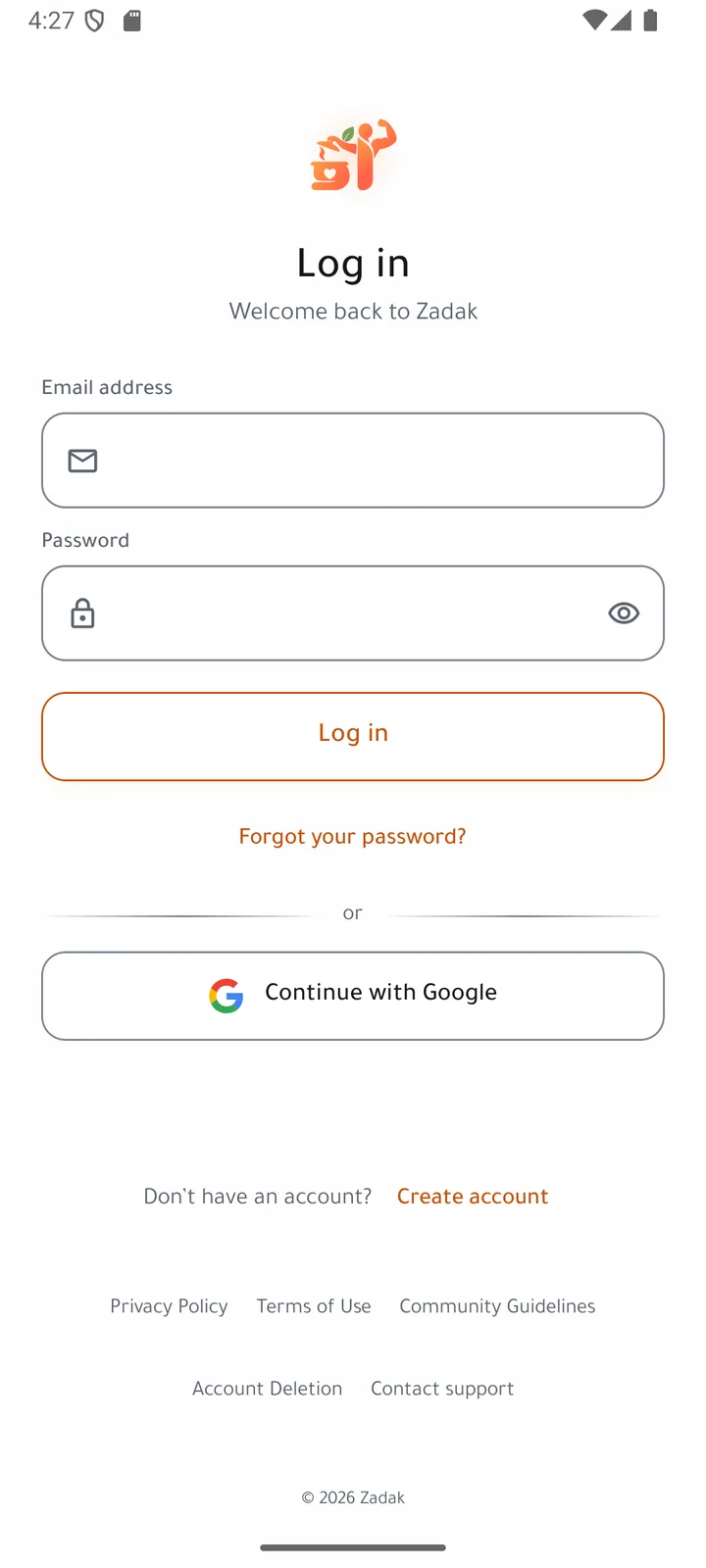
Choose “Forgot your password?” on the log-in screen. If the problem continues, email support@myzadak.com from the address of your account. We will never ask for your password.
Related:Contact us
Troubleshooting
When something doesn’t work as it should.
- Update the app to the latest version from Google Play.
- Close the app and open it again.
- Check your internet connection.
- If the problem continues, write to us with your phone model and a description of what happened.
Related:Contact support
Check your internet connection, then enter your ingredients again in clearer words.
Privacy and account data
Your data and your rights.
In the app: Profile → Security → Delete account. If you cannot use the app, follow the email method described on the Account Deletion page.
Related:Account Deletion
We explain what we collect, why, and how we protect it in the Privacy Policy.
Related:Privacy Policy
Contacting support
We’re here to help.
Email support@myzadak.com with your phone model and a description of what happened, or choose “App support” on the Contact page. Never send your password.
Related:Contact us
Didn’t find what you were looking for?
Write to the support team, or browse the FAQ.

MYZADAK is coming soon to Google Play
At launch: start with what you have, or with any section you need.